What is Git and GitHub? A Complete Beginner's Guide
Git and GitHub explained with everyday analogies, then practical commands. Learn version control from scratch.
In Short
Git is a version control system that automatically tracks every change made to your files.
GitHub is a cloud platform where you can store Git-managed projects online for backup and collaboration.
What Problem Does Version Control Solve?
Without version control, many people manage files like this:
report.doc
report_final.doc
report_final_v2.doc
report_FINAL_real.doc
The problem: it’s hard to know which version is actually current, and difficult to track what changed between versions.
Git works differently: you maintain one set of files, but Git records the history of every change. You can view any point in time and revert to previous states whenever needed.
Understanding Through Google Drive
If you’ve used Google Drive, these concepts will be easier to grasp:
| Google Drive | Git + GitHub |
|---|---|
| Save files to cloud | push to GitHub |
| Download files from cloud | pull |
| Version history | commit history |
| Share link with others | Make repo public |
| Multiple people editing | Collaboration (via PR) |
Key difference: Google Drive syncs automatically. Git requires you to manually decide when to save (commit) and when to upload (push).
The benefit of manual control is that you decide exactly what changes go into each save point, rather than syncing every keystroke.
Git vs GitHub
| Name | Description | Analogy |
|---|---|---|
| Git | Version control system, runs on your computer | Google Drive’s “Version history” feature |
| GitHub | Cloud platform for storing projects | Google Drive itself |
Git tracks your changes. GitHub lets you access projects from any device, share with others, and collaborate with teams.
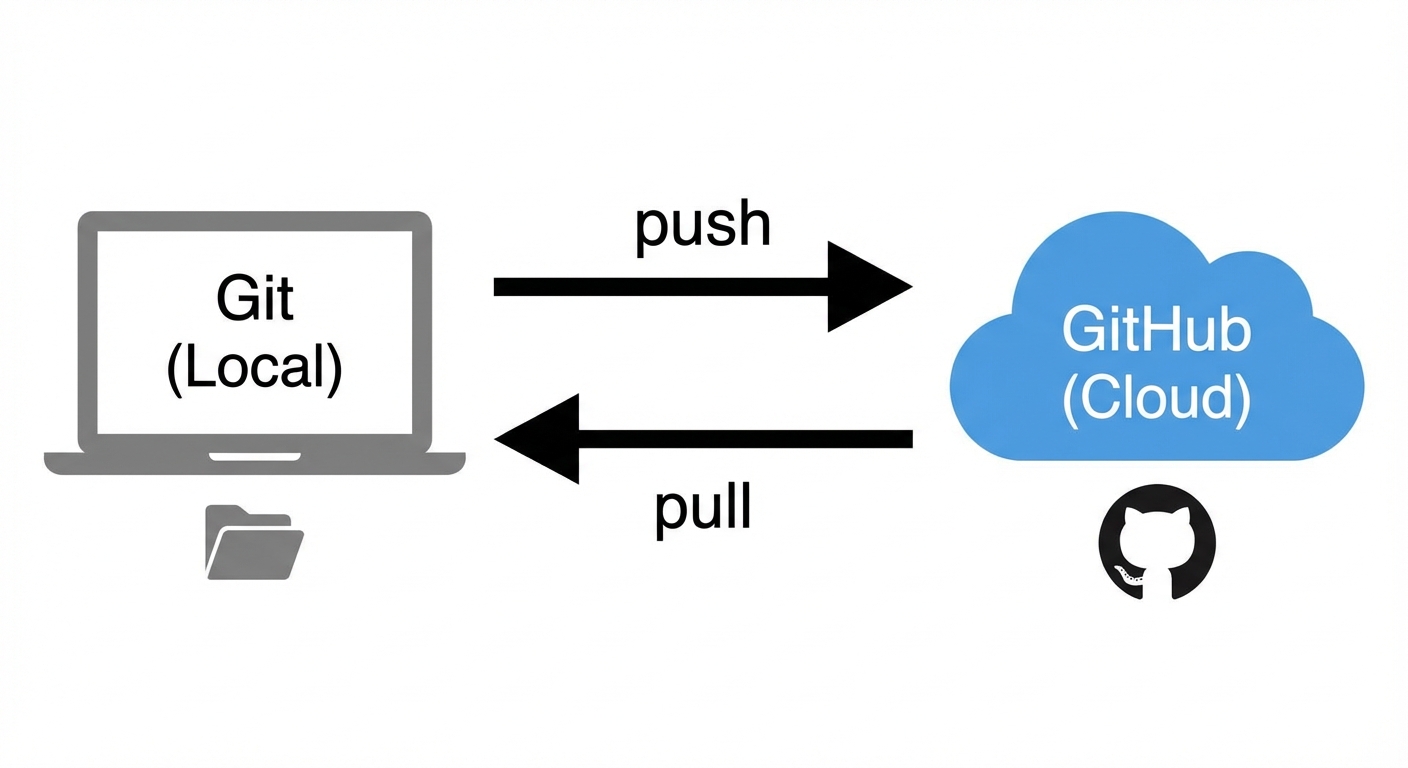
You can use Git without GitHub (projects stay local), but GitHub makes backup and collaboration much easier.
Four Core Operations
Commit and Push
| Operation | Description |
|---|---|
| commit | Save changes to local history |
| push | Upload local commits to GitHub |
You can commit multiple times, then push them all at once.
Fetch and Pull
| Operation | Description |
|---|---|
| fetch | Download remote info without changing local files |
| pull | fetch + merge, directly update local files |
Quick Reference
| Direction | Safe version | Direct version |
|---|---|---|
| Download ↓ | fetch (look only) | pull (update directly) |
| Upload ↑ | commit (local only) | push (upload to cloud) |
What is a Pull Request (PR)?
In collaborative projects, you typically don’t modify the main version directly. The standard workflow is:
- Create a branch or fork
- Make changes on your version
- Submit a Pull Request to merge your changes into the main version
- Others review, and if approved, merge
Why This Process?
- Every change is reviewed before entering the main version
- Discussion and suggestions happen on the PR
- Complete record of all changes
- Can be reverted if needed
Basic Commands
Initial Setup
# Configure identity (one time only)
git config --global user.name "Your Name"
git config --global user.email "your@email.com"

# Create a new repository
git init

# Or clone an existing project
git clone https://github.com/username/repo.git
Daily Workflow
1. Check status
git status2. Stage changes
# Add specific file
git add filename.js

# Add all changes
git add .
3. Commit
git commit -m "Describe this change"4. Push
git push5. Pull
git pullCommon Scenarios
Starting a New Project
mkdir my-project
cd my-project
git init

echo "# My Project" > README.md

git add .
git commit -m "Initial commit"

# Create repo on GitHub first, then connect
git remote add origin https://github.com/username/my-project.git
git push -u origin main
Working on an Existing Project
git clone https://github.com/username/project.git
cd project

# Make changes...

git add .
git commit -m "Describe changes"
git push
Creating a Feature Branch
git checkout -b new-feature

# Make changes...

git add .
git commit -m "Add new feature"
git push -u origin new-feature

# Then open a Pull Request on GitHub
Other GitHub Features
| Feature | Description |
|---|---|
| Issues | Track bugs, feature requests, tasks |
| Actions | Automation (testing, building, deploying) |
| Pages | Free static website hosting |
| README | Project documentation, displayed on homepage |
Tips for Beginners
Commit Often Small, frequent commits are better than large ones—easier to understand and revert.
Write Clear Commit Messages
# Unclear
git commit -m "fix"

# Clear
git commit -m "Fix login button not responding on mobile"
Pull Before You Push
Run git pull before starting work to ensure you have the latest version.
Use .gitignore
Create a .gitignore file to exclude files that shouldn’t be tracked:
node_modules/
.env
.DS_Store
Terminology Reference
| Term | Description |
|---|---|
| Git | Version control system |
| GitHub | Cloud platform |
| Repository (Repo) | Project folder |
| commit | Save to local |
| push | Upload to cloud |
| pull | Download and merge from cloud |
| fetch | Download from cloud without merging |
| Branch | Parallel version |
| Pull Request (PR) | Request to merge changes |
Related Articles
- What is a Terminal? - Where you run Git commands
Sources
- GitHub Docs - Official GitHub documentation
- Git Documentation - Official Git reference
- Pro Git Book - Free comprehensive Git guide
Get in Touch
Have questions or want to collaborate? Feel free to reach out!